
Installation
Quick start
The easiest way to start a new Fedify project is to use the fedify init command. It creates a new directory with a minimal Fedify project template.
CLI toolchain
First of all, you need to have the fedify command, the Fedify CLI toolchain, installed on your system. If you haven't installed it yet, please follow the following instructions:
npm install -g @fedify/clibrew install fedifyscoop install fedifybun install -g @fedify/clideno install -gA --unstable-fs --unstable-kv -n fedify jsr:@fedify/cliIf you use Deno earlier than 2.7.0, add --unstable-temporal to the Deno installation command above.
There are other ways to install the fedify command. Please refer to the Installation section in the CLI toolchain docs.
Project setup
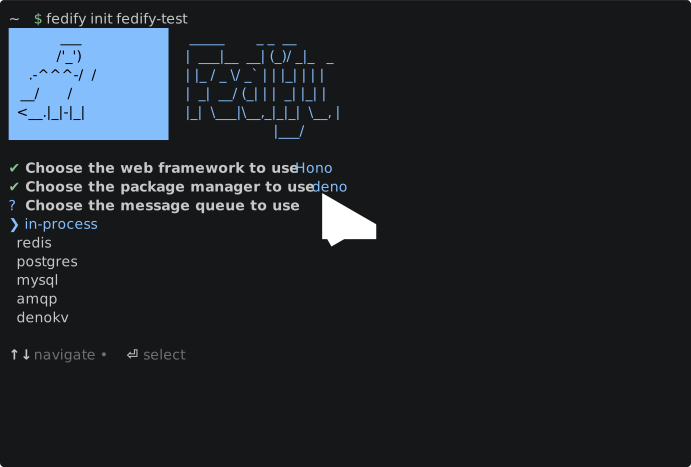
After installing the fedify command, you can create a new Fedify project by running the following command:
fedify init your-project-dirThe above command will start a wizard to guide you through the project setup. You can choose the JavaScript runtime, the package manager, and the web framework you want to integrate Fedify with, and so on. After the wizard finishes, you will have a new Fedify project in the your-project-dir directory.
For more information about the fedify init command, please refer to the fedify init section in the CLI toolchain docs.
Alternative: Using @fedify/create
If you don't want to install the fedify CLI globally, you can use @fedify/create directly:
npm init @fedify your-project-dirpnpm create @fedify your-project-diryarn create @fedify your-project-dirbunx @fedify/create your-project-dirThis works the same way as fedify init and will guide you through the same project setup wizard.
TIP
Already running a federated service on another JavaScript ActivityPub library? See Migrating from other libraries for guides covering activitypub-express, @activity-kit/*, hand-rolled Express code, and activitystrea.ms.
Manual installation
Fedify is available on npm for Node.js and Bun, and on JSR for Deno.
Node.js
Node.js is the primary runtime for Fedify. As a prerequisite, you need to have Node.js 22.0.0 or later installed on your system. Then you can install Fedify via the following command:
npm add @fedify/fedifypnpm add @fedify/fedifyyarn add @fedify/fedifyWe recommend using ESM with Fedify by adding "type": "module" to the package.json file. While Fedify also supports CommonJS for legacy compatibility, ESM is the preferred approach:
{
  "type": "module",
  "dependencies": {
    "@fedify/fedify": "^1.8.1"
  }
}
Bun
Fedify can also be used in Bun. You can install it via the following command:
bun add @fedify/fedifyDeno
Fedify can also be used in Deno. As a prerequisite, you need to have Deno 2.0.0 or later installed on your system. Then you can install Fedify via the following command:
deno add jsr:@fedify/fedifyFedify requires the Temporal API. On Deno 2.7.0 or later, it is stable and no extra setting is needed. On Deno versions earlier than 2.7.0, add "temporal" to the "unstable" field in deno.json:
{
  "imports": {
    "@fedify/fedify": "jsr:@fedify/fedify"
  },
  "unstable": ["temporal"]
}
Editor setup
fedify init configures Visual Studio Code for you out of the box. Setting up Zed takes a few extra steps because fedify init does not generate .zed/ files yet.
Visual Studio Code
For Node.js/Bun projects, fedify init writes a .vscode/extensions.json that recommends the Oxc extension:
{ "recommendations": ["oxc.oxc-vscode"] }The matching .vscode/settings.json sets Oxfmt as the default formatter and enables Oxc's fix-all action on save:
{
  "editor.detectIndentation": false,
  "editor.indentSize": 2,
  "editor.insertSpaces": true,
  "oxc.fmt.configPath": ".oxfmtrc.json",
  "[typescript]": {
    "editor.defaultFormatter": "oxc.oxc-vscode",
    "editor.formatOnSave": true,
    "editor.codeActionsOnSave": {
      "source.fixAll.oxc": "always"
    }
  }
  // The same block applies to [javascript], [javascriptreact],
  // [typescriptreact], [json], and [jsonc].
}
For Deno projects, fedify init writes a .vscode/extensions.json that recommends the Deno extension:
{ "recommendations": ["denoland.vscode-deno"] }The matching .vscode/settings.json turns on Deno's language server and sets it as the default formatter for JavaScript and TypeScript:
{
  "deno.enable": true,
  "deno.unstable": true,
  "editor.detectIndentation": false,
  "editor.indentSize": 2,
  "editor.insertSpaces": true,
  "[typescript]": {
    "editor.defaultFormatter": "denoland.vscode-deno",
    "editor.formatOnSave": true,
    "editor.codeActionsOnSave": {
      "source.sortImports": "always"
    }
  }
  // The same block applies to [javascript], [javascriptreact], and
  // [typescriptreact]; [json] and [jsonc] use "vscode.json-language-features".
}
Deno's Set up your environment guide covers other editors and shells.
Zed
TIP
fedify init does not generate .zed/ configuration; the snippets below need to be added by hand.
For Node.js/Bun projects, Zed enables its bundled TypeScript language server out of the box; the typical addition is wiring up Oxc for formatting and lint fixes. See Zed's TypeScript language docs for setup. Set Oxc as the language server and turn on its fix-all action on format:
{
  "language_servers": ["oxc", "..."],
  "code_actions_on_format": {
    "source.fixAll.oxc": true
  }
}
For Deno projects, create .zed/settings.json that enables the Deno language server and uses it as the formatter for TypeScript and JavaScript. The ! prefix disables the bundled TypeScript and ESLint servers so they do not compete with Deno:
{
  "lsp": {
    "deno": {
      "settings": { "deno": { "enable": true } }
    }
  },
  "languages": {
    "TypeScript": {
      "formatter": [
        { "language_server": { "name": "deno" } }
      ],
      "language_servers": [
        "deno",
        "!typescript-language-server",
        "!vtsls",
        "!eslint",
        "!biome",
        "..."
      ]
    }
    // The same block applies to TSX and JavaScript.
  }
}
Zed's Deno language docs cover the available options. Hackers' Pub is a real-world reference.
Linting
fedify init configures the @fedify/lint plugin automatically: Node.js/Bun projects pick it up through a generated .oxlintrc.json using @fedify/lint/oxlint, and Deno projects through lint.plugins in deno.json. For the full rule list, configuration options, and how to run the linter, see the Linting chapter.
Agentic skill
The fedify skill is available since Fedify 2.2.0, and the fedify-cli skill since Fedify 2.5.0.
Fedify provides two skills for AI coding assistants such as Claude Code, Codex, and OpenCode:
fedify, shipped in@fedify/fedify, covers the framework's APIs, common pitfalls, and recommended patterns.fedify-cli, shipped in@fedify/clisince Fedify 2.5.0, covers command-line diagnostics and testing, including servers built without Fedify.
Expose the skills you need to your agent's skills directory using one of the methods below. Installing the CLI executable globally does not install its skill.
Claude Code plugin
Install the Fedify plugin from the Claude Code marketplace. The plugin works with any runtime and includes the framework and CLI skills, task-specific slash commands, and two specialized agents:
/plugin marketplace add fedify-dev/fedify
/plugin install fedify@fedify
pnpm 12.11.0 or later
Use pnpm's built-in Agent Skills support. Install the package as a direct dependency in the project where your agent works. For the framework skill, use pnpm add @fedify/fedify; for the CLI skill:
pnpm add -D @fedify/cliSet the destination directories in pnpm-workspace.yaml. For example, to make both Claude Code and Codex discover approved skills:
skills:
  dirs:
    - .claude/skills
    - .agents/skills
Run pnpm approve and approve skills for @fedify/fedify, @fedify/cli, or both, according to the direct dependencies you installed. Approval is saved in pnpm-workspace.yaml and covers all skills in future versions of the approved package. No skills-npm dependency or prepare script is needed.
pnpm links the skills into the chosen directories with names such as pnpm-@fedify+fedify-fedify/ and pnpm-@fedify+cli-fedify-cli/. Global installs, pnpm dlx, and pnpm deploy do not link skills. If you use only a global CLI, use the manual installation below instead.
npm, Yarn, Bun, and older pnpm
Install @fedify/fedify for the framework skill, or add @fedify/cli as a dev dependency for the CLI skill:
npm add -D @fedify/clipnpm add -D @fedify/cliyarn add -D @fedify/clibun add -D @fedify/cliUse skills-npm, a third-party tool by Anthony Fu (it is not a Fedify package), that scans node_modules for packages exposing the agents.skills field in their package.json and links them into your agent's skills directory on every install.
Install
skills-npmas a dev dependency:npm add -D skills-npmpnpm add -D skills-npmyarn add -D skills-npmbun add -D skills-npmAdd a
preparescript to your package.json so it runs after every install:{ "scripts": { "prepare": "skills-npm" } }Reinstall once. The installed packages' skills appear at .claude/skills/fedify/ and/or .claude/skills/fedify-cli/ (and similar locations for other supported agents).
The same script picks up other Fedify packages and any third-party npm packages that adopt the convention.
Deno and standalone CLI installations
For Deno, Homebrew, Scoop, mise, standalone binaries, or a global npm/Bun installation, download the skills by hand. Choose the framework skill, the CLI skill, or both:
Pick your agent's skills directory. For Claude Code, use .claude/skills/; for Codex, use .agents/skills/.
Download each desired SKILL.md into its own subdirectory. For Claude Code:
mkdir -p .claude/skills/fedify
curl -fL -o .claude/skills/fedify/SKILL.md \
  https://raw.githubusercontent.com/fedify-dev/fedify/main/claude-plugin/skills/fedify/SKILL.md
mkdir -p .claude/skills/fedify-cli curl -fL -o .claude/skills/fedify-cli/SKILL.md \ https://raw.githubusercontent.com/fedify-dev/fedify/main/claude-plugin/skills/fedify-cli/SKILL.mdSubstitute .agents/skills/ for .claude/skills/ when using Codex.
Either commit the files or add them to .gitignore, depending on your team's preference.